Getting Started with SproutOS: From Prompt to Export
Create your first website project in SproutOS. Start with a prompt, generate a sitemap, customize the design, and export in one flow.
SproutOS takes you from a project idea to an export-ready website design in one structured flow. You start with a text prompt on the dashboard. SproutOS generates your sitemap and design automatically. You then customize and export to Elementor, Gutenberg, or Figma, all from one place. No separate tools needed.
Best Used For
- Freelance web designers scoping client sites before committing to detailed design work
- WordPress agencies generating pre-sales mockups from discovery calls and client briefs
- Solo founders and small teams building a first marketing site without a dedicated designer
Key Features
- Quick Prompt: Type a short description and get a full project scope generated in seconds. Use this when you already know what you want and need a fast starting point.
- Scope Editor: Review and edit your AI-generated project draft, including goals, brand direction, and references. Use this to confirm the details SproutOS uses before it builds your sitemap.
- Sitemap Editor: Visually add, remove, reorder, and rename pages and sections before design. Use this to lock in information architecture before any pixels are generated.
- Design Editor: Swap color palettes, font pairs, layout variants, and images with live preview across mobile, tablet, and desktop. Use this to match a client brand without hand-editing CSS.
- Multi-Format Export: Export the finished design to Elementor, Gutenberg, or Figma (Coming Soon). Use this to hand off to a developer, drop straight into a WordPress site, or continue in your design tool.
Before You Start
- A SproutOS account. Sign up at https://sproutos.ai if you do not have one
- A basic description of the website you want to build
Step 1: Log In to the Dashboard
Go to https://sproutos.ai/dashboard and log in with your email, Google account, Facebook, or Passkey.
You land on the main dashboard. Your recent projects appear on the left - use the Search bar at the top of the sidebar to quickly find any project by name. The prompt box sits in the center of the screen.
Step 2: Start Your Project
Type a short description of the website in the prompt box. One or two sentences is enough.
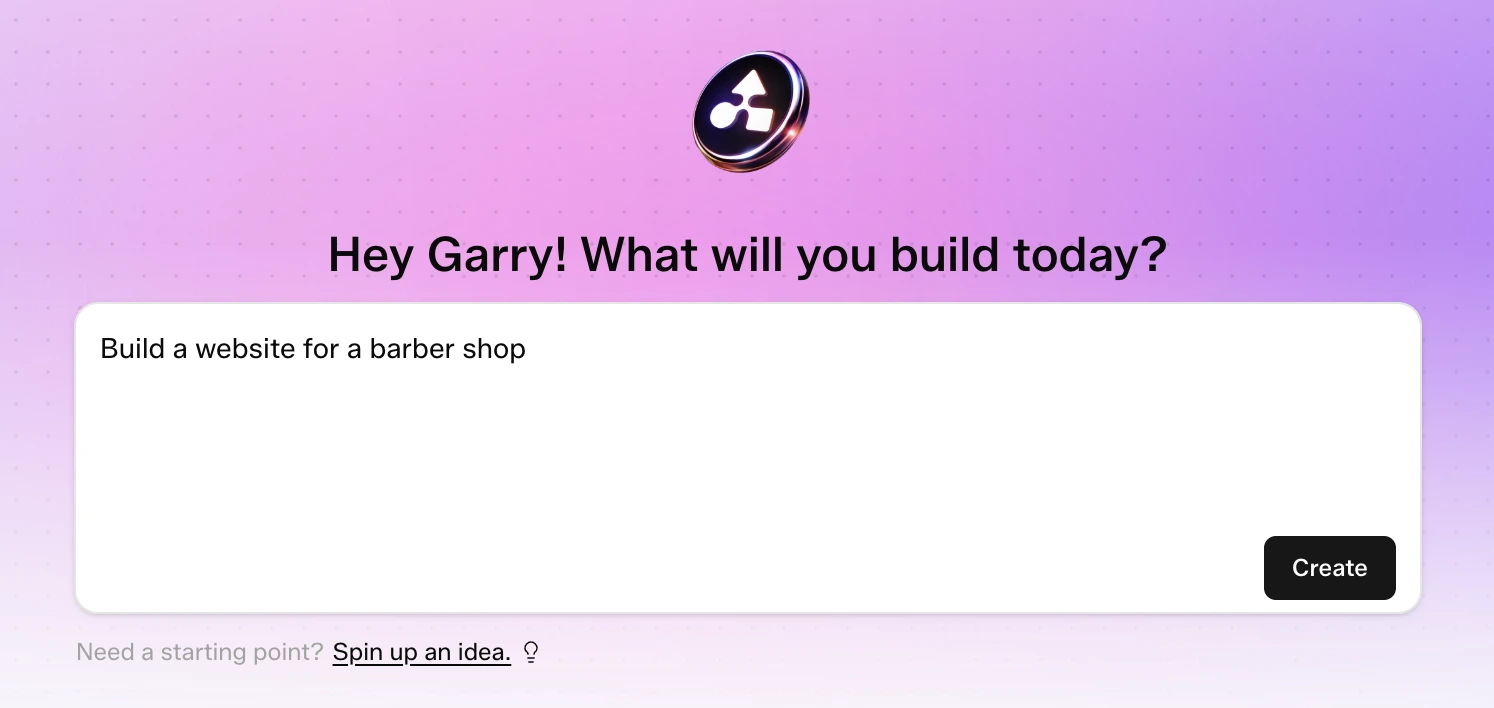
Click Generate. SproutOS uses your prompt to draft your project scope immediately.
Not sure what to write? Click Spin up an idea below the prompt box to get a starting suggestion.
Step 3: Review Your Scope
SproutOS drafts a full project scope from your prompt, covering Project Basics, Business Snapshot, Copy & Trust, Brand Direction, References, and Improve Accuracy. Confirm each section as-is, or click Edit to refine it with more detail, a reference website, or an uploaded brief.
Scope Editor
Learn how to review and edit your AI-generated project draft before building your sitemap.
Step 4: Review Your Sitemap
Once you save your scope, SproutOS builds a full sitemap for your project.
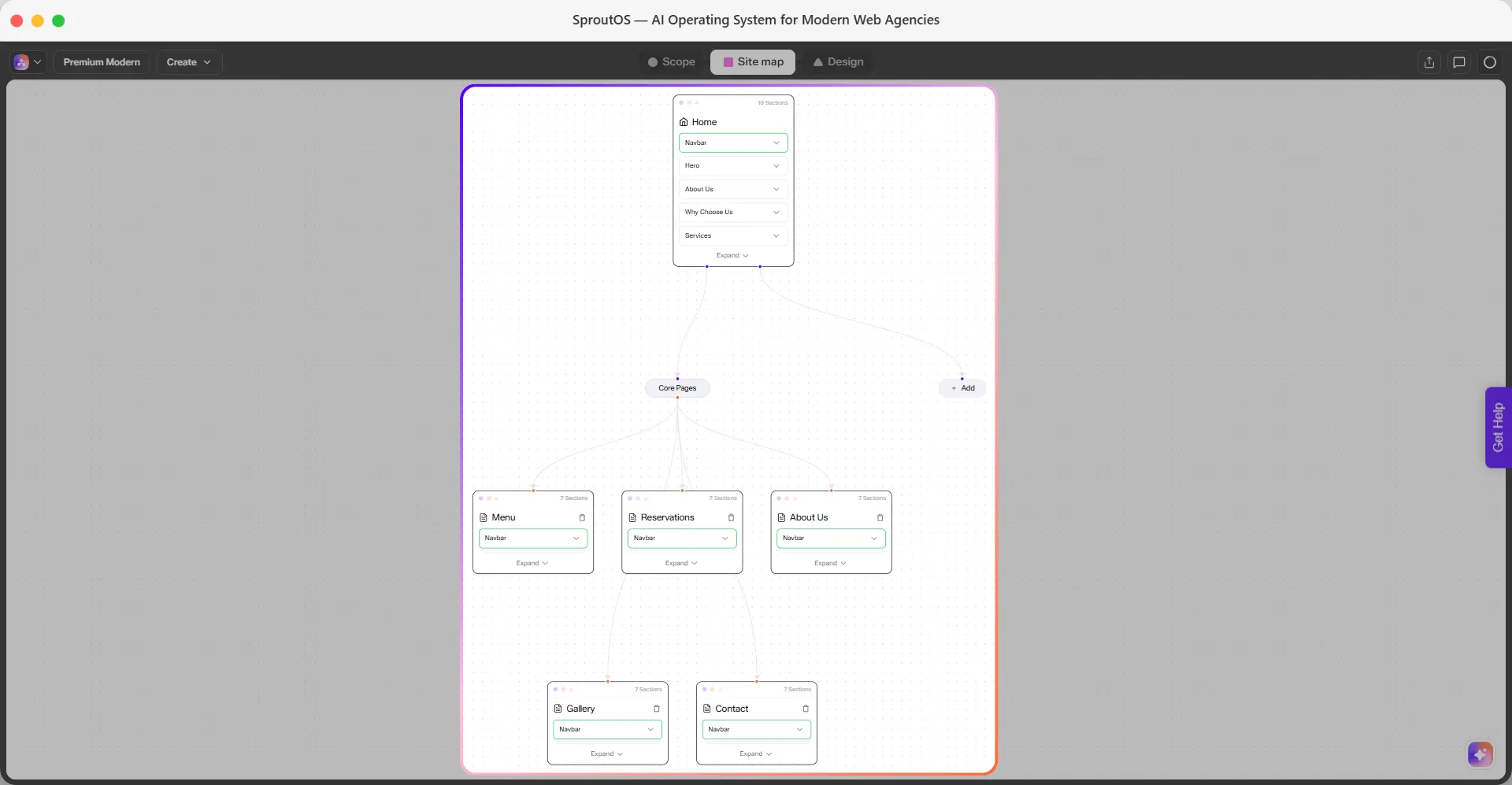
The sitemap shows your pages and sections in a visual layout. You can add, remove, reorder, or rename anything before moving to design. Nothing is locked in at this stage.
Sitemap Editor
Learn how to add pages, reorder sections, and refine your site structure before designing.
Step 5: Customize Your Design
Once your sitemap is ready, SproutOS generates a full visual design for every page and section.
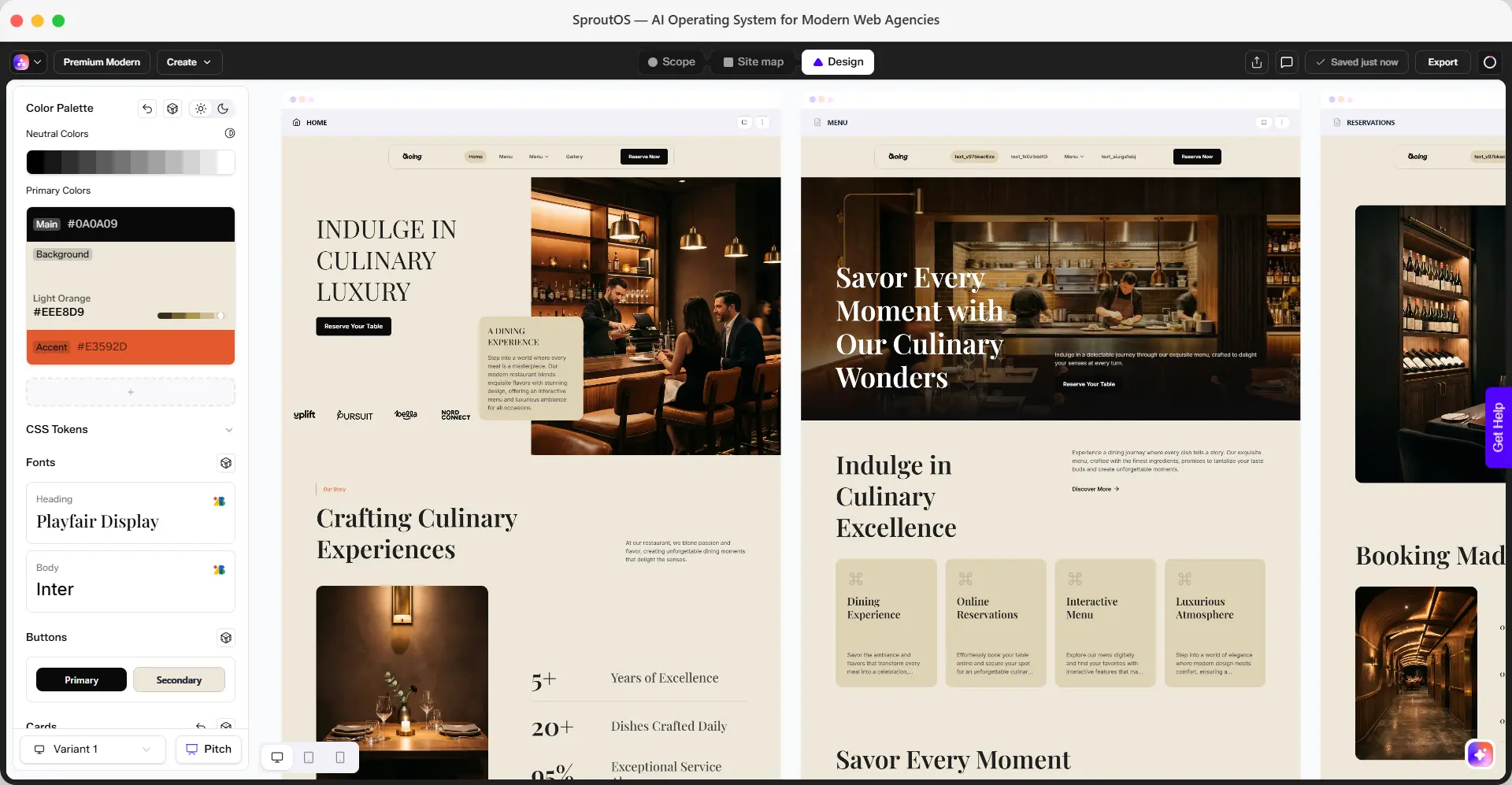
In the Design Editor, you can:
- Switch between color palettes and font pairs
- Swap section layout variants
- Upload images or browse the stock photo library
- Edit text directly on the canvas
- Preview on mobile, tablet, and desktop
Design Editor
Learn how to customize colors, fonts, images, and section layouts in the Design Editor.
Step 6: Export Your Project
When your design is ready, export it to your production tool.
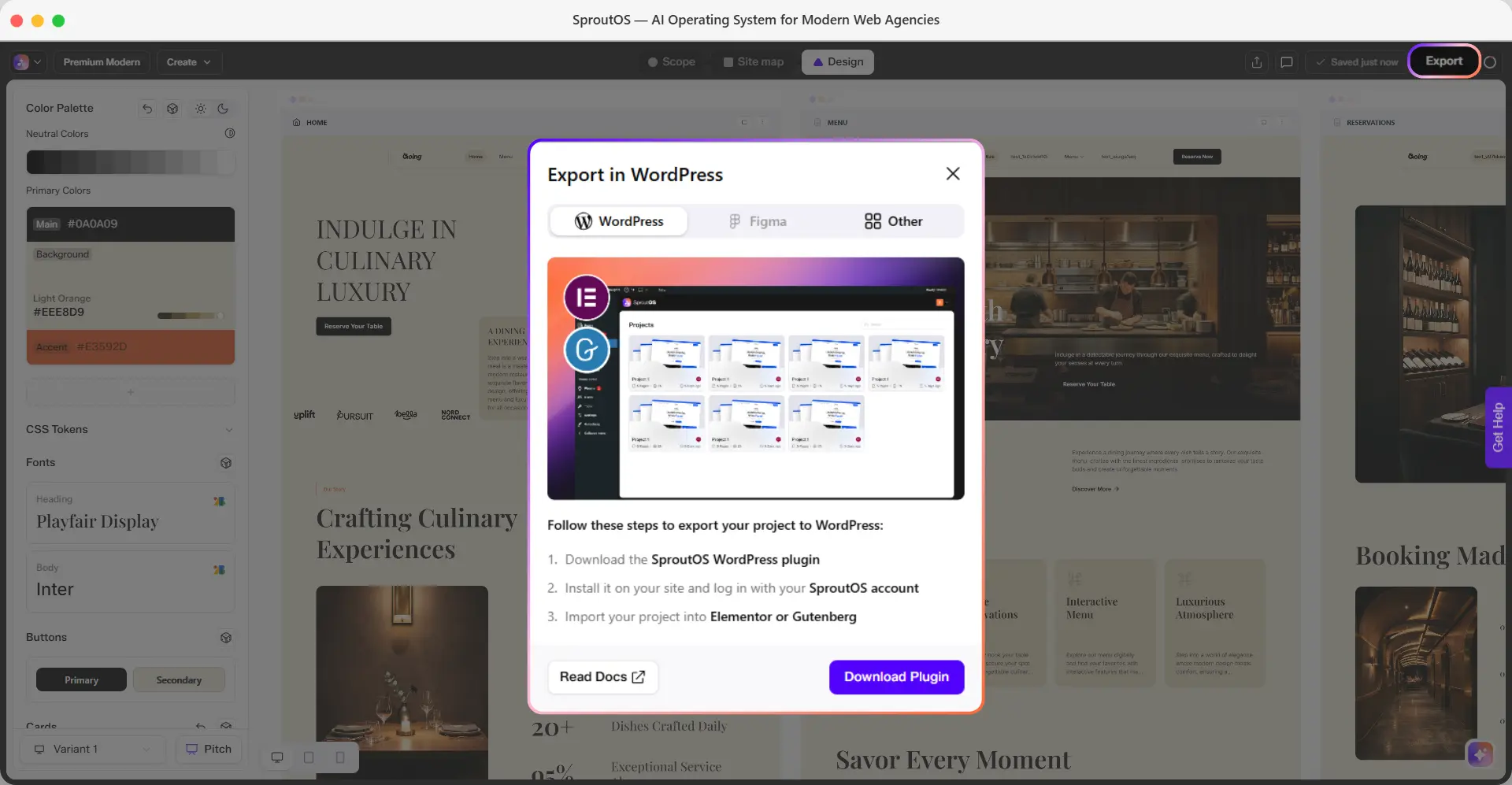
SproutOS currently exports to Elementor and Gutenberg. Export to Figma is coming soon.
| Format | Status | What You Get |
|---|---|---|
| Elementor | Available | Ready-to-import WordPress page builder template |
| Gutenberg | Available | WordPress block editor format |
| Figma | Coming Soon | Design file for handoff or further editing |
Export to Figma is coming soon. Once available, you will be able to export your finished design directly into Figma for further editing or developer handoff.
Export to WordPress
Step-by-step import instructions for Elementor and Gutenberg.