Export to WordPress - Send Your SproutOS Project to Elementor or Gutenberg
Export your finished SproutOS design to Elementor or Gutenberg in a few clicks. Install the SproutOS plugin, log in, and import your project directly into WordPress.
Phase 4 of 4: Scope → Sitemap → Design → You are here: Export to WordPress. Your design is ready. Export sends it directly to your WordPress site.
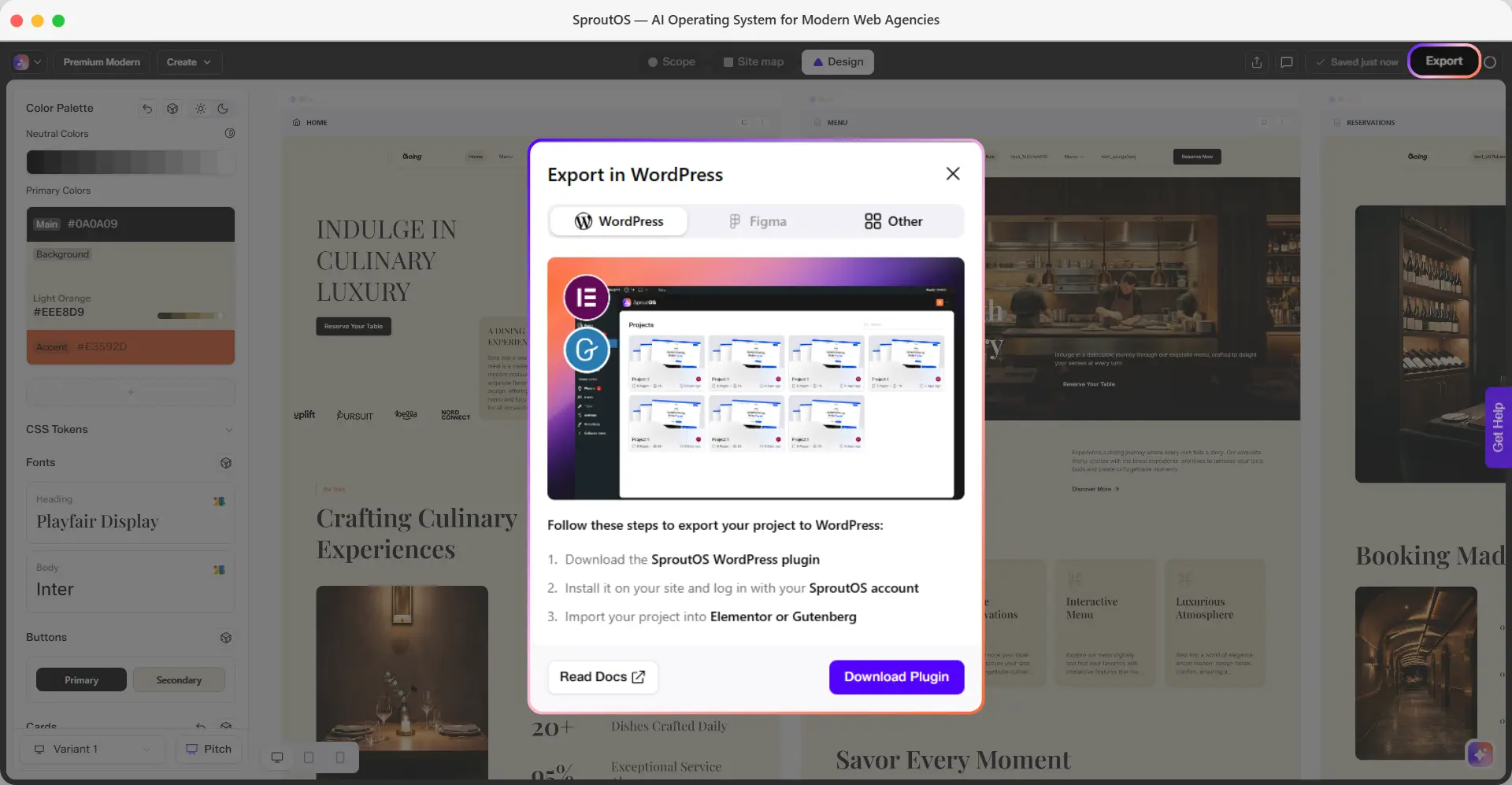
Once your design is ready in the Design Editor, export it to WordPress with a few clicks. SproutOS packages your entire project (pages, sections, content, and styles) and makes it available for import inside WordPress via the SproutOS plugin.
Supported Export Formats
SproutOS currently exports to Elementor and Gutenberg. Figma (coming soon) is on the way.
| Format | Status | What You Get |
|---|---|---|
| Elementor | Available | Full page layouts ready to edit in Elementor |
| Gutenberg | Available | Block-based layouts for the WordPress block editor |
| Figma | Coming Soon | Design file for handoff or further editing |
Step 1: Download the Plugin From SproutOS
From the Design Editor, click Export in the top-right corner. Click Download Plugin to get the SproutOS plugin ZIP file.
This step only downloads the plugin. You choose your builder later, inside WordPress.
Step 2: Install the Plugin on WordPress
Upload the plugin
In your WordPress admin, go to Plugins > Add Plugin > Upload Plugin. Choose the ZIP file and click Install Now.
Activate the plugin
Click Activate Plugin once the upload finishes.
Log in to SproutOS
Open the SproutOS plugin from your WordPress sidebar. Log in with the same credentials you use on the SproutOS Dashboard.
Step 3: Import Your Project
Builder and page selection happen here, inside the plugin.
Select your project
Your exported projects appear in the plugin. Click the project you want to import.
Choose your builder
A popup opens. Select your builder - Elementor or Gutenberg - and click Next.
Select the pages to import
All pages appear, selected by default. Keep the ones you want and clear the rest, then click Next.
Run the import
SproutOS imports your selected pages one by one. Each page is built in your chosen builder as it completes.
Use the same email and password you use to log in at sproutos.ai/dashboard. The plugin uses the same account to match your exported projects.