

Design Editor: Customize the Look of Every Section
Learn how to use the SproutOS Design Editor to customize colors, fonts, layouts, images, and text across your entire website design before exporting.
Phase 3 of 4: Scope → Sitemap → You are here: Design → Export. The Design Editor is where your website comes to life visually. Every page and section from your sitemap is rendered here as a real design you can customize.
The Design Editor is an infinite canvas where you customize the visual design of every page and section. SproutOS generates a starting design from your prompt and sitemap. You then adjust colors, fonts, layouts, images, and text to match the client's brand. Every change is saved automatically.
The Canvas
The canvas shows your full website design: every page, every section, in order. Use these controls to navigate:
- Pan: click and drag on any empty area of the canvas
- Zoom: use the zoom controls at the bottom or scroll while holding Ctrl
- Fit to screen: click the fit button to see your entire design at once
- Switch pages: use the page list on the left sidebar to jump between pages
SproutOS AI Assistant
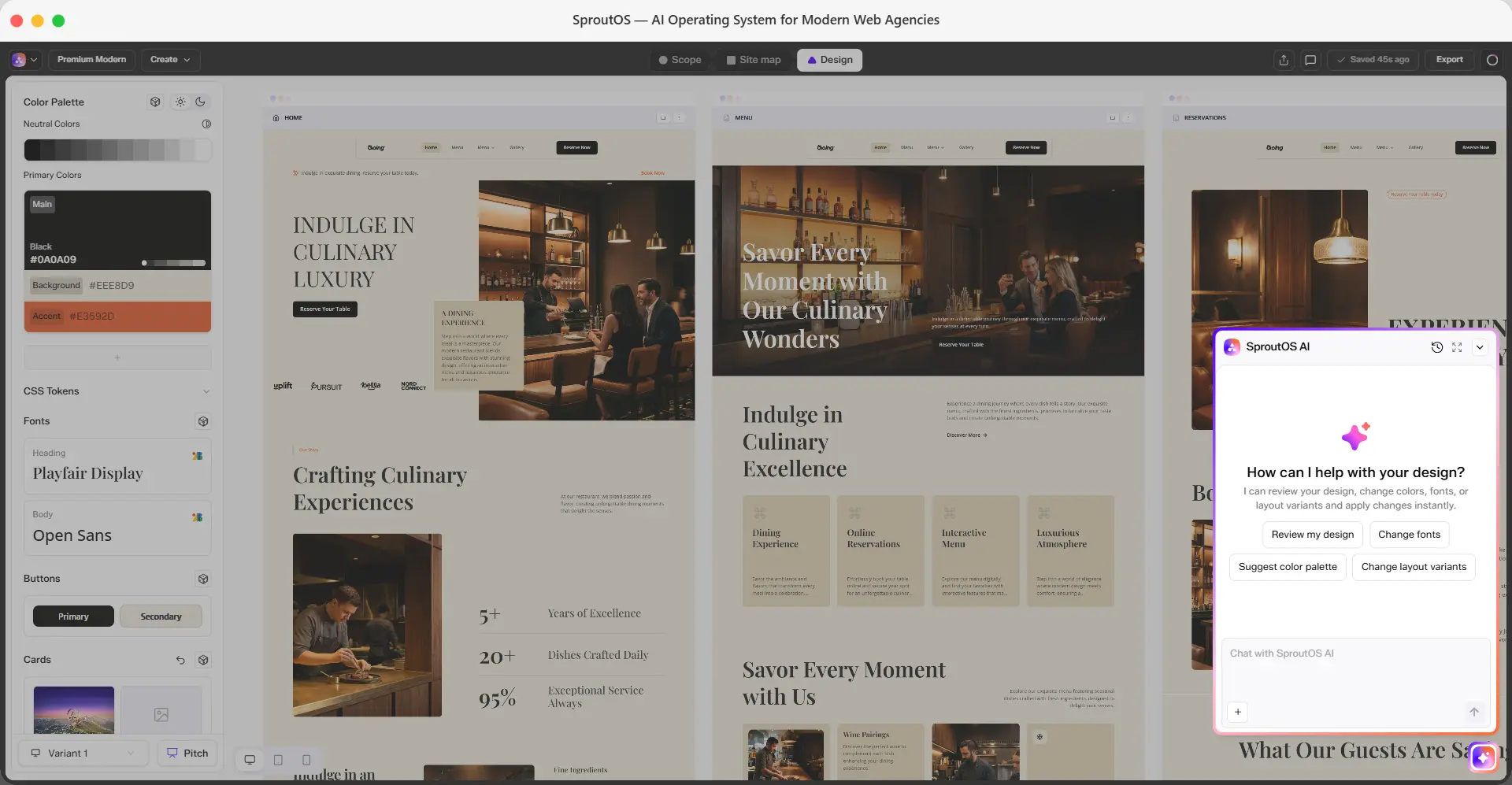
Click the SproutOS AI icon in the bottom-right corner of the canvas to open the assistant. Use it to review your design or apply changes by chatting instead of using the Design Panel manually.
- Review my design - Ask the assistant to review your current design and suggest improvements
- Change fonts - Ask the assistant to swap your heading and body fonts
- Suggest color palette - Ask the assistant to recommend a new color palette
- Change layout variants - Ask the assistant to switch section layouts
Type your own request in the chat box to ask for something specific. The assistant applies changes directly to your design.
Design Panel
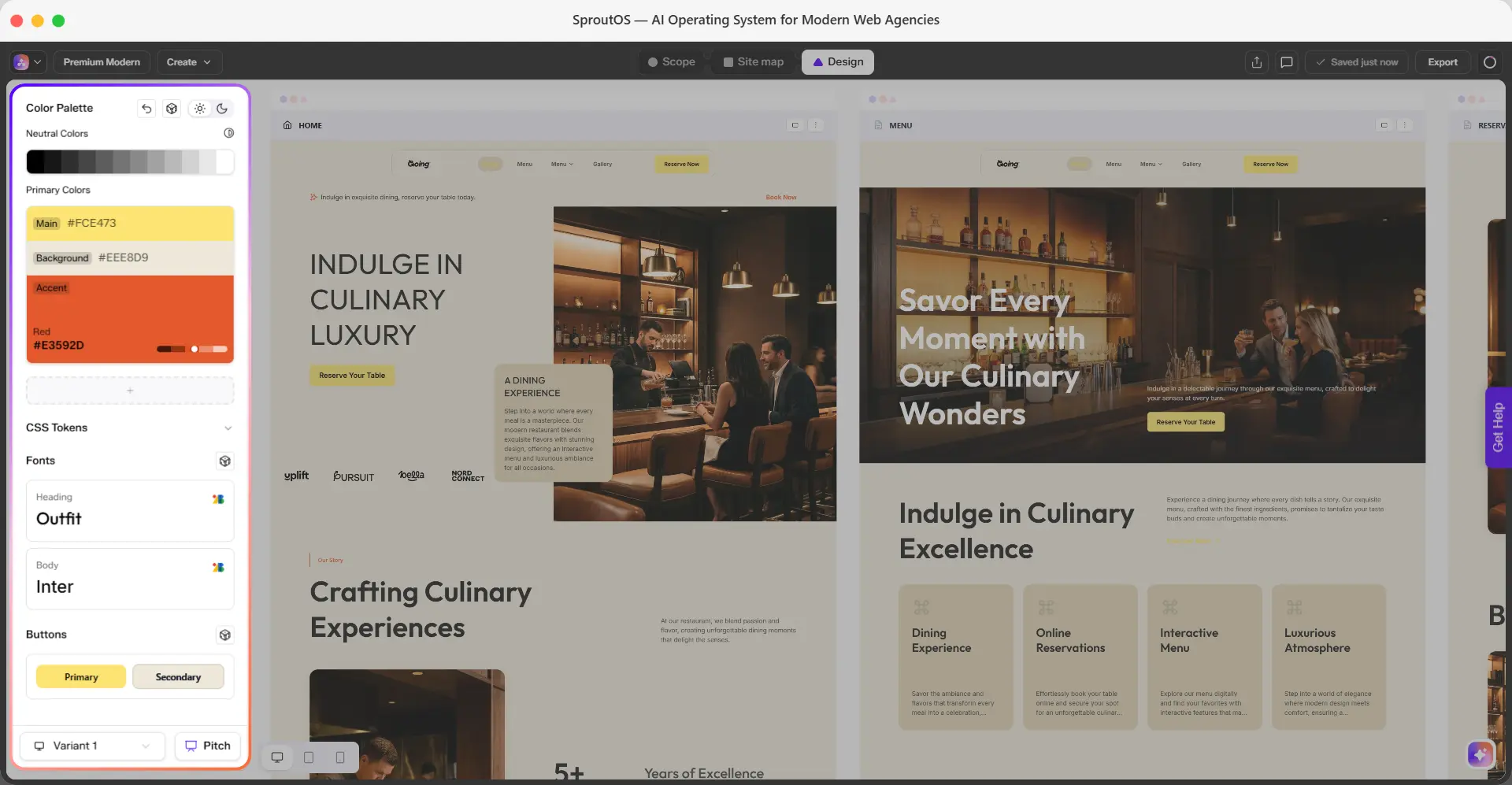
The Design Panel is the left sidebar in the Design Editor. It controls the global styles for your entire site - colors, fonts, buttons, and cards. Changes made here apply across every page and section instantly.
The panel includes the following controls:
- Color Palette - Set your site's color scheme. Choose from pre-built industry palettes, customize primary and accent colors, and randomize combinations until you find the right look.
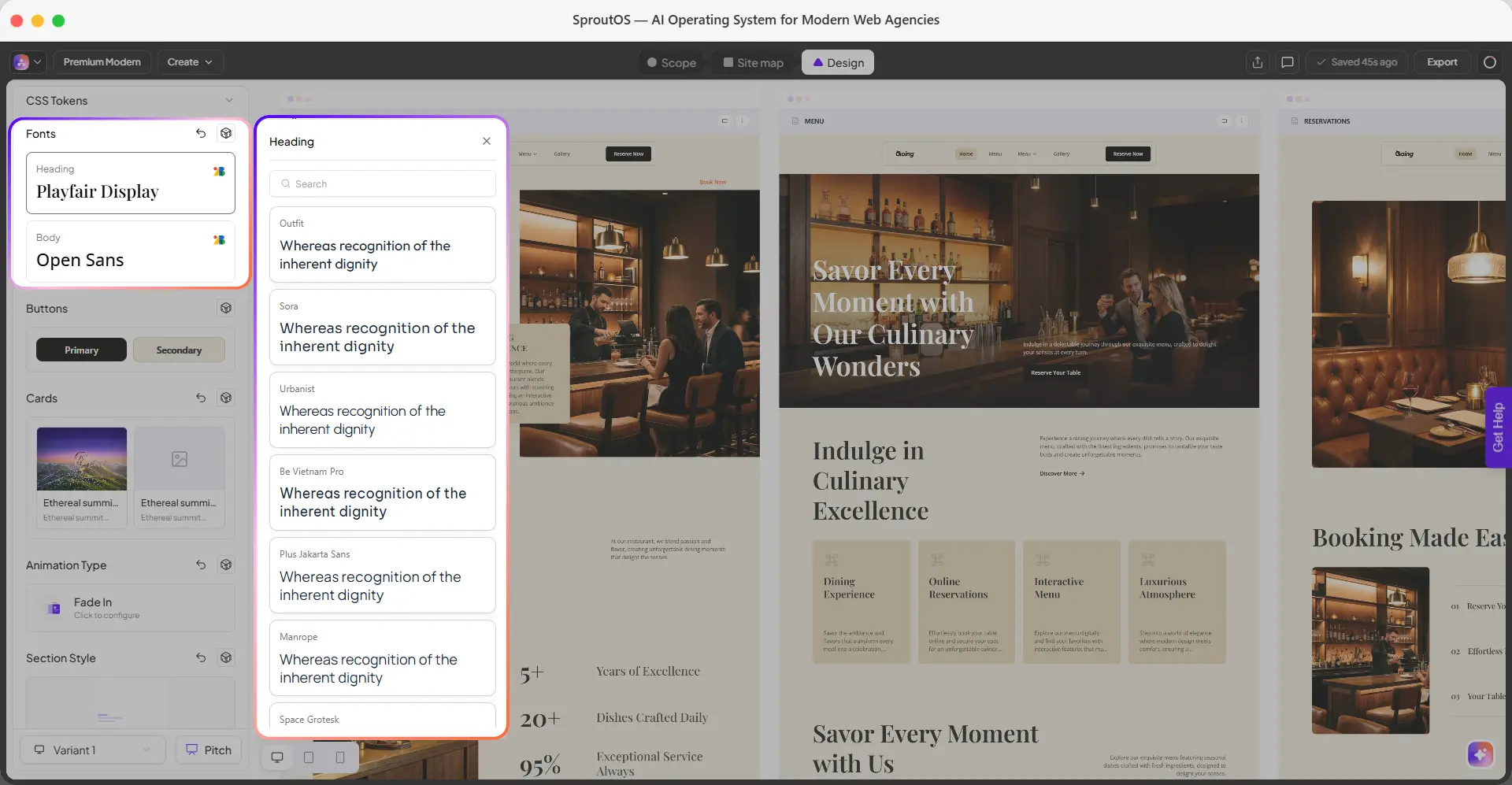
- Fonts - Pick heading and body fonts from 1,000+ Google Fonts. Changes apply globally across every section the moment you select a font.
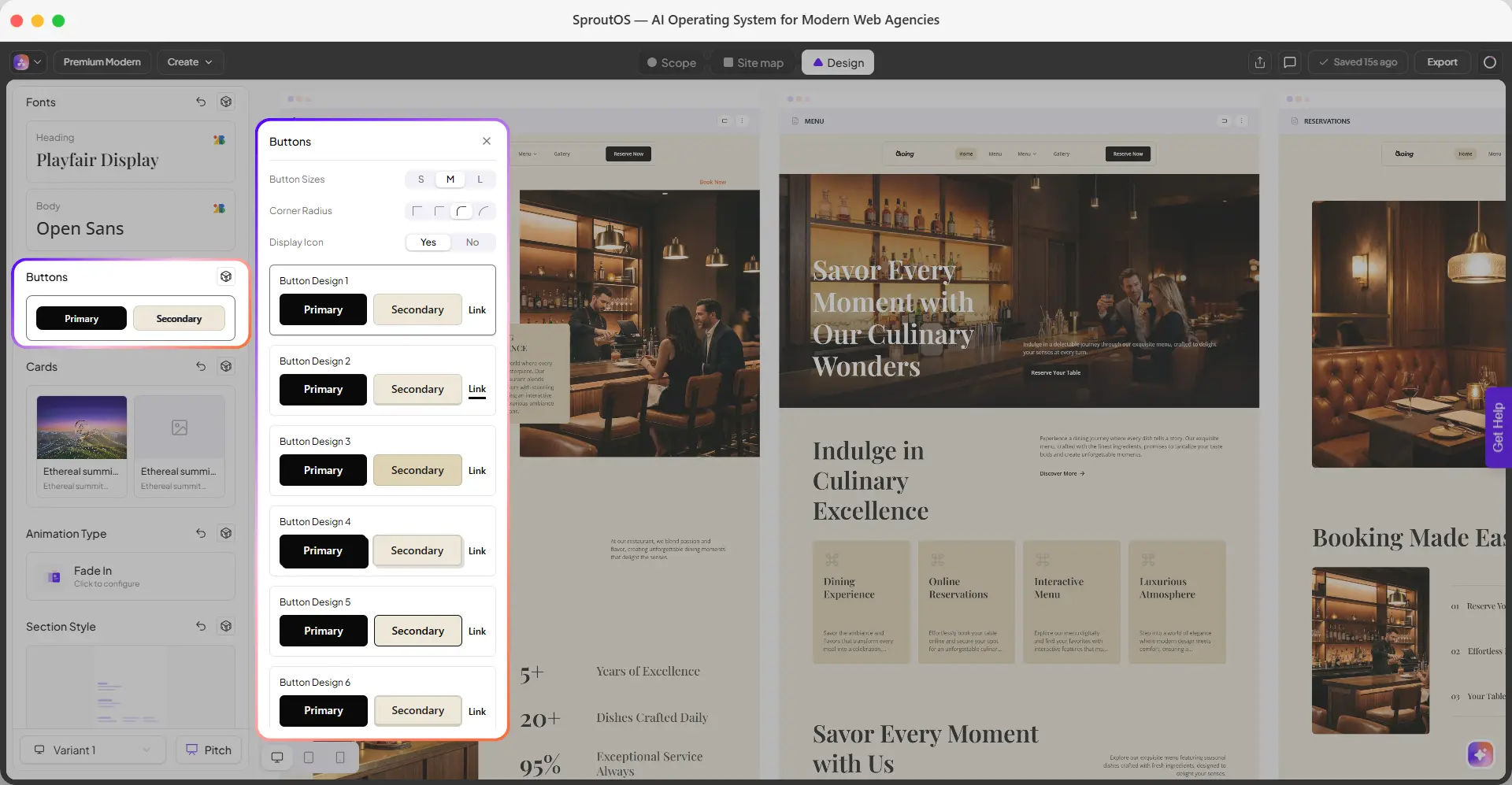
- Buttons - Control the size, corner radius, icon visibility, and overall style of every button on the site. Use Randomize to explore style combinations quickly.
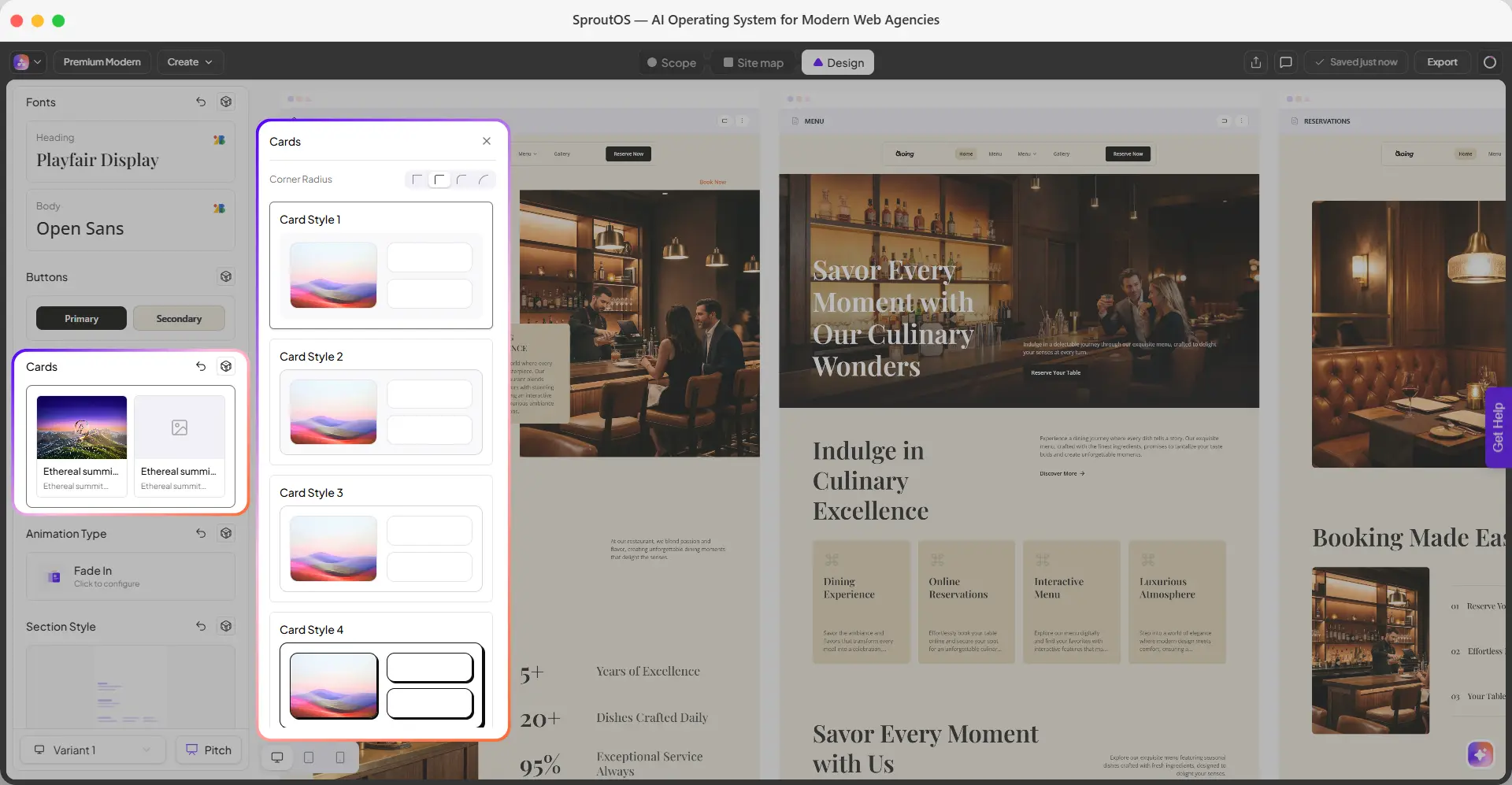
- Cards - Control the corner radius and overall style of every card on the site. Use Randomize to explore style combinations quickly.
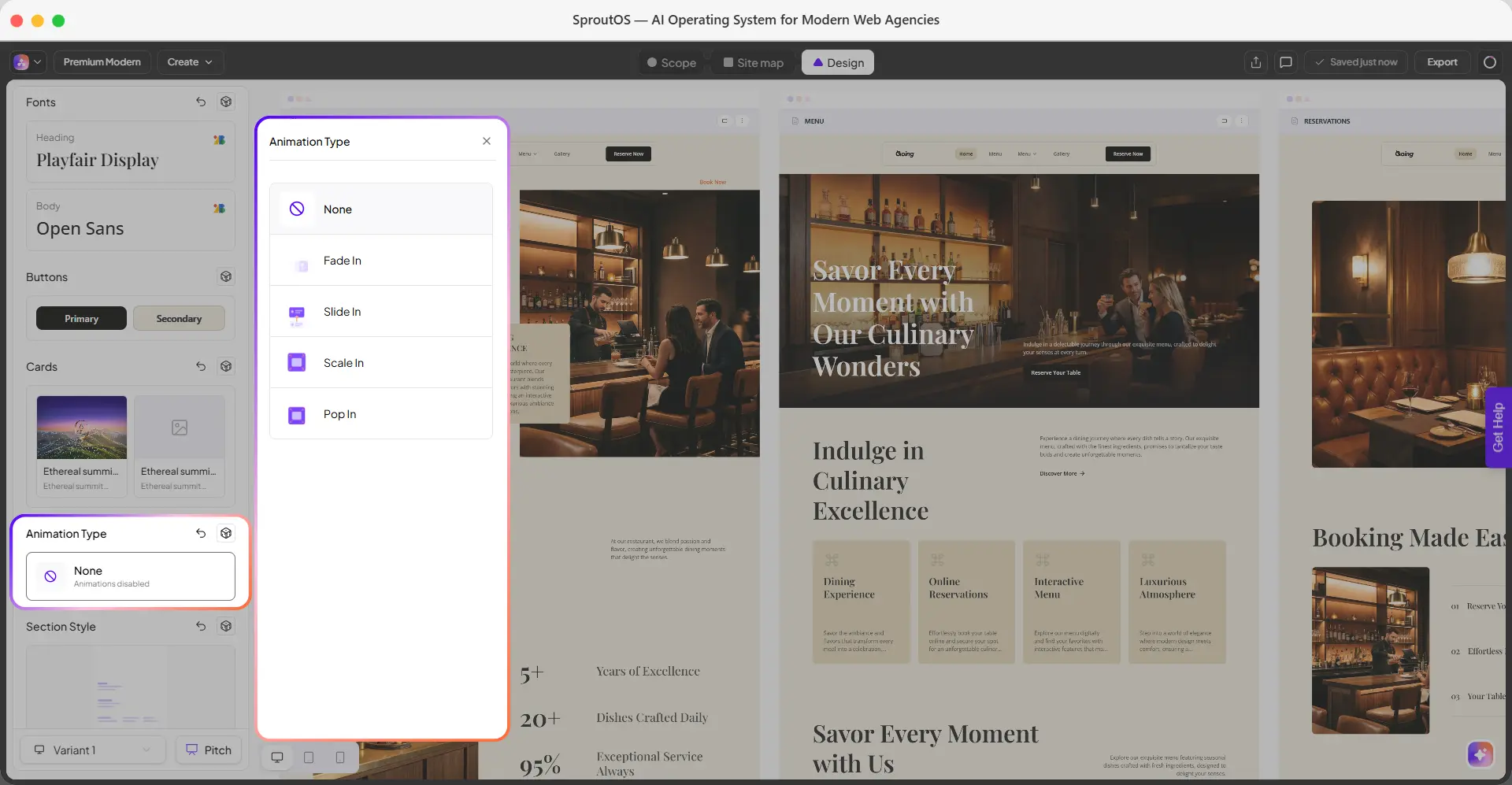
- Animation Type - Set the default entrance animation for sections across the site. Use Randomize to preview different animation styles.
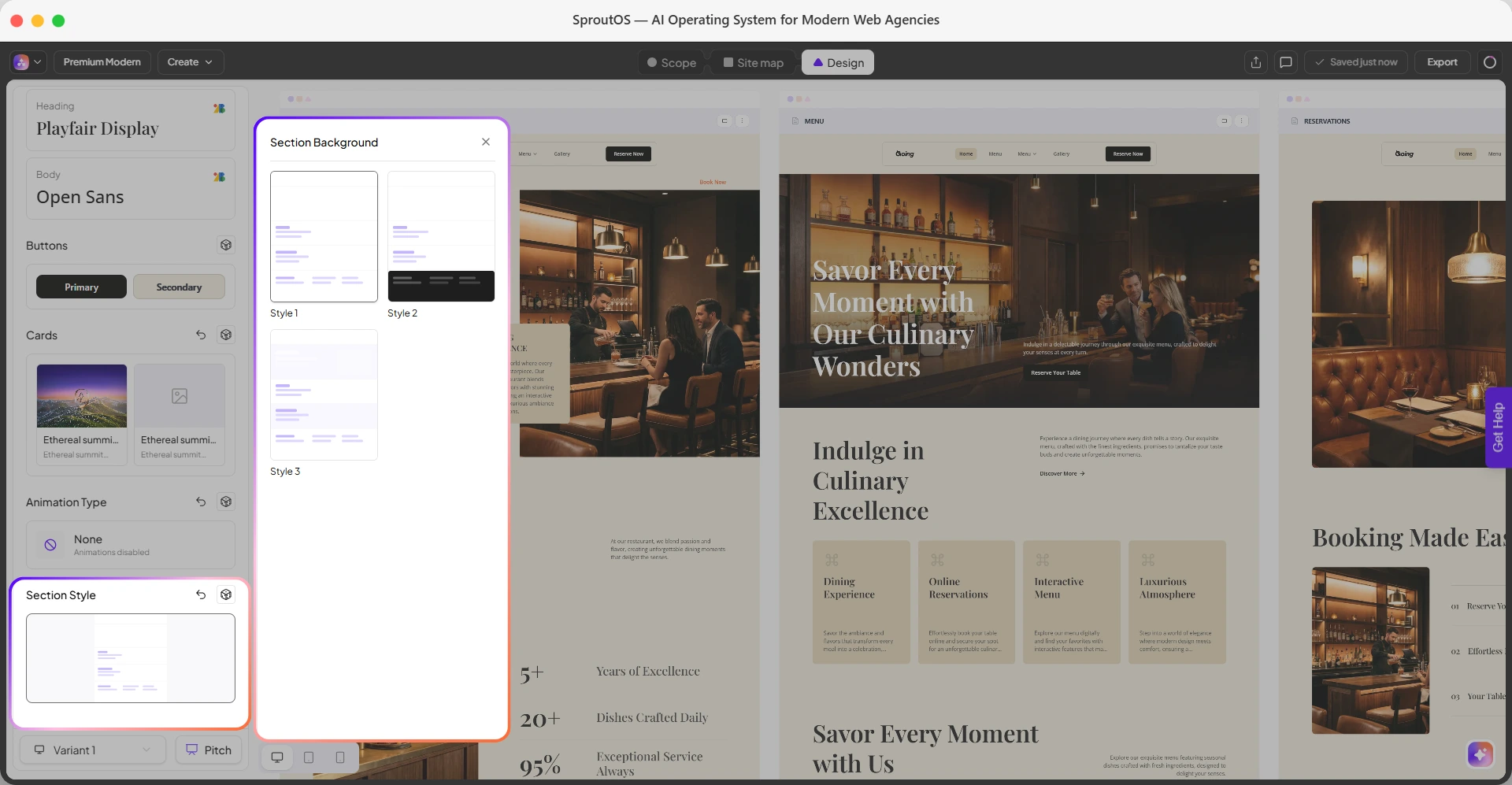
- Section Style - Set the default background style for sections across the site. Use Randomize to preview different style combinations.
- Design Variants - Create and switch between multiple complete design variants of your site. Use Pitch to generate a shareable client preview link.
Color Palette
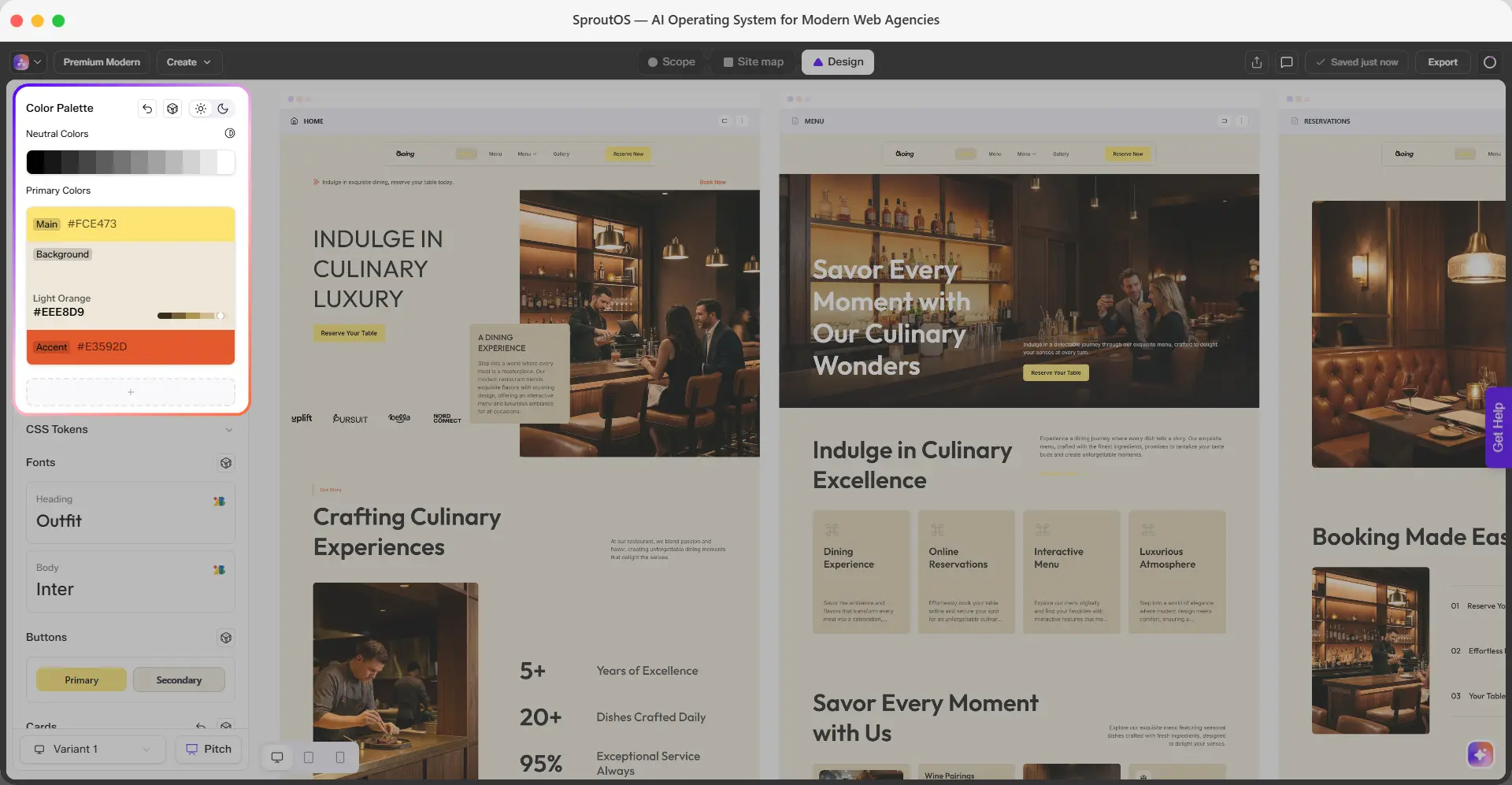
SproutOS provides multiple pre-built color palettes organized by industry. Switching palettes updates the entire design instantly.
- Browse palettes by industry: Tech, Health, Finance, Creative, and more
- Create a custom palette using hex color input
- Adjust the global saturation slider to make all colors more vivid or more muted
- Click Randomize colors to instantly generate a new color combination based on your current palette
- Add a new accent color using the + button under Primary Colors, or remove an existing accent by clicking the delete icon on it
- Toggle between Light and Dark mode using the sun and moon icons to preview how your palette looks in both themes
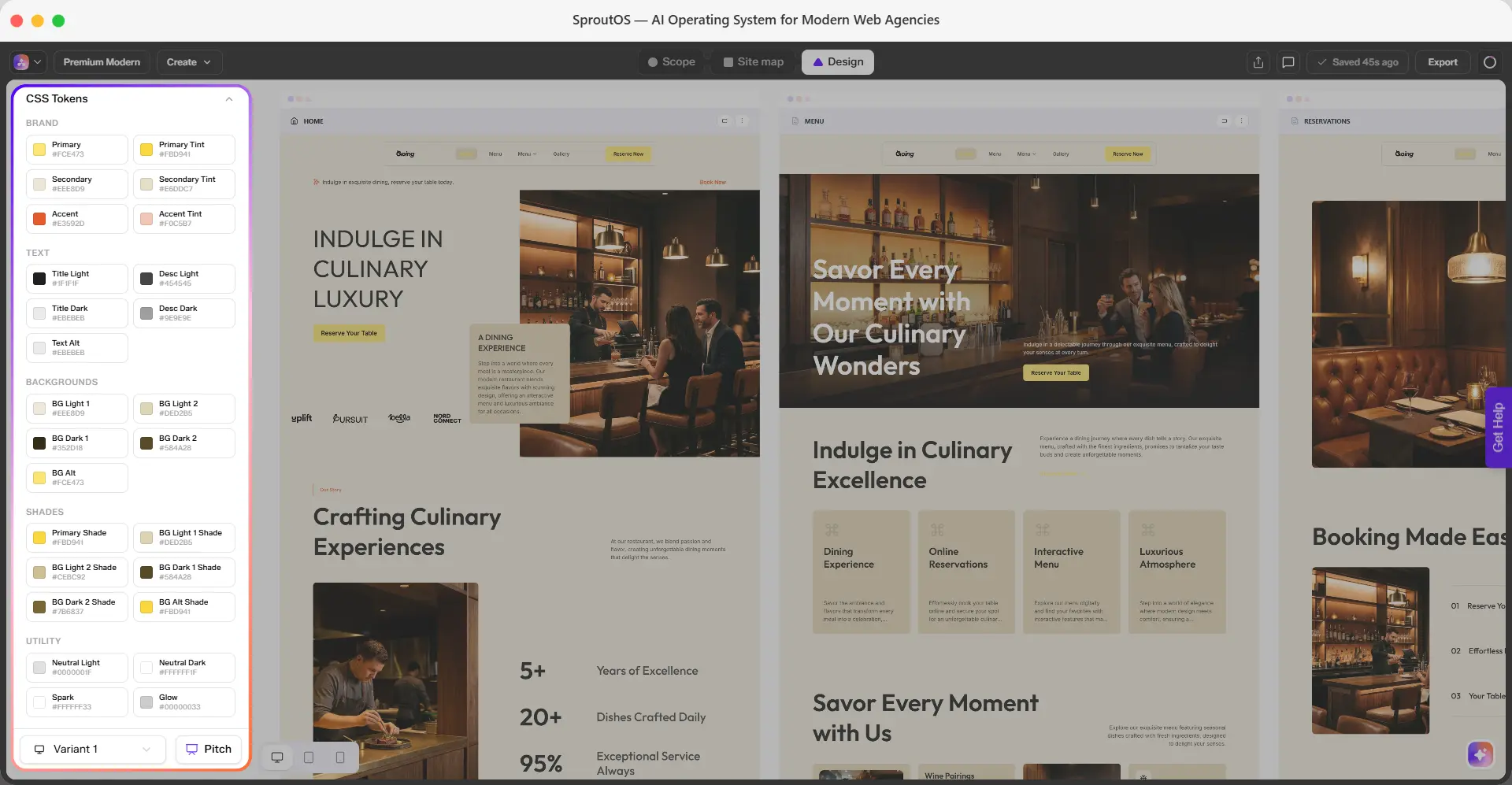
- Click CSS Tokens to expand the full set of derived color tokens SproutOS generates from your Main, Background, and Accent colors
| Token Group | What's Included |
|---|---|
| Brand | Primary, Secondary, and Accent colors, plus a tint of each |
| Text | Title and description colors for light and dark backgrounds, plus an alternate text color |
| Backgrounds | Two light background colors, two dark background colors, and an alt background color |
| Shades | A deeper shade variant of each brand and background color |
| Utility | Neutral light and dark colors, plus spark and glow colors for effects |
Try several palettes before settling on one. Switching is instant and you can always go back.
Fonts
Choose from 1,000+ Google Fonts for your heading and body text.
- Heading font: applies to all headings across the entire design
- Body font: applies to all paragraph text
- Search and filter fonts by name or category (serif, sans-serif, display, etc.)
- Font changes apply globally and update every section instantly
- Click Randomize fonts to instantly swap to a new heading and body font pairing
Buttons
The Buttons section lets you control the global style of all buttons across your design. Changes here apply to every button on every page.
- Button Sizes: choose the default button size - Small (S), Medium (M), or Large (L)
- Corner Radius: select from four options ranging from sharp square corners to fully rounded
- Display Icon: toggle Yes or No to show or hide icons inside buttons
Select a Button Design to choose the overall button style. Each design shows a preview of how your Primary, Secondary, and Link buttons will look across the site.
- Click Randomize buttons to instantly generate a new button style combination
Cards
The Cards section lets you control the global style of all cards across your design. Changes here apply to every card on every page.
- Corner Radius: select from four options ranging from sharp square corners to fully rounded
Select a Card Style to choose the overall card layout. Each style shows a preview of how the card image, heading, and description are arranged.
- Click Randomize cards to instantly generate a new card style combination
Animation Type
The Animation Type section lets you set the default entrance animation for sections across your design. Changes here apply site-wide.
- None: animations disabled
- Fade In: sections fade into view
- Slide In: sections slide into view
- Scale In: sections scale up into view
- Pop In: sections pop into view
Click Randomize animations to instantly preview a different animation style.
Section Style
The Section Style section lets you set the default background style for sections across your design. Changes here apply site-wide.
Select a Section Background style to choose how sections are presented. For example:
- Light background
- Dark background
- Alternate light layout
Click Randomize style to instantly preview a different background style.
Design Variants
Design Variants let you create multiple complete versions of your site's design, so you can explore different directions or present options to a client. This is different from a section variant, which only changes the layout of one section.
- Click the Variant dropdown at the bottom of the Design Panel to switch between your saved design variants
- Click + Add New Variant to create a new design variant
Click Pitch to open Pitch Concept and generate a shareable link for your client.
- View up to three design variants side by side under Top Three Concepts
- Add a description to each variant for context
- Click Copy Link to share the preview. Your client can view it without logging in to SproutOS.
Section Layouts
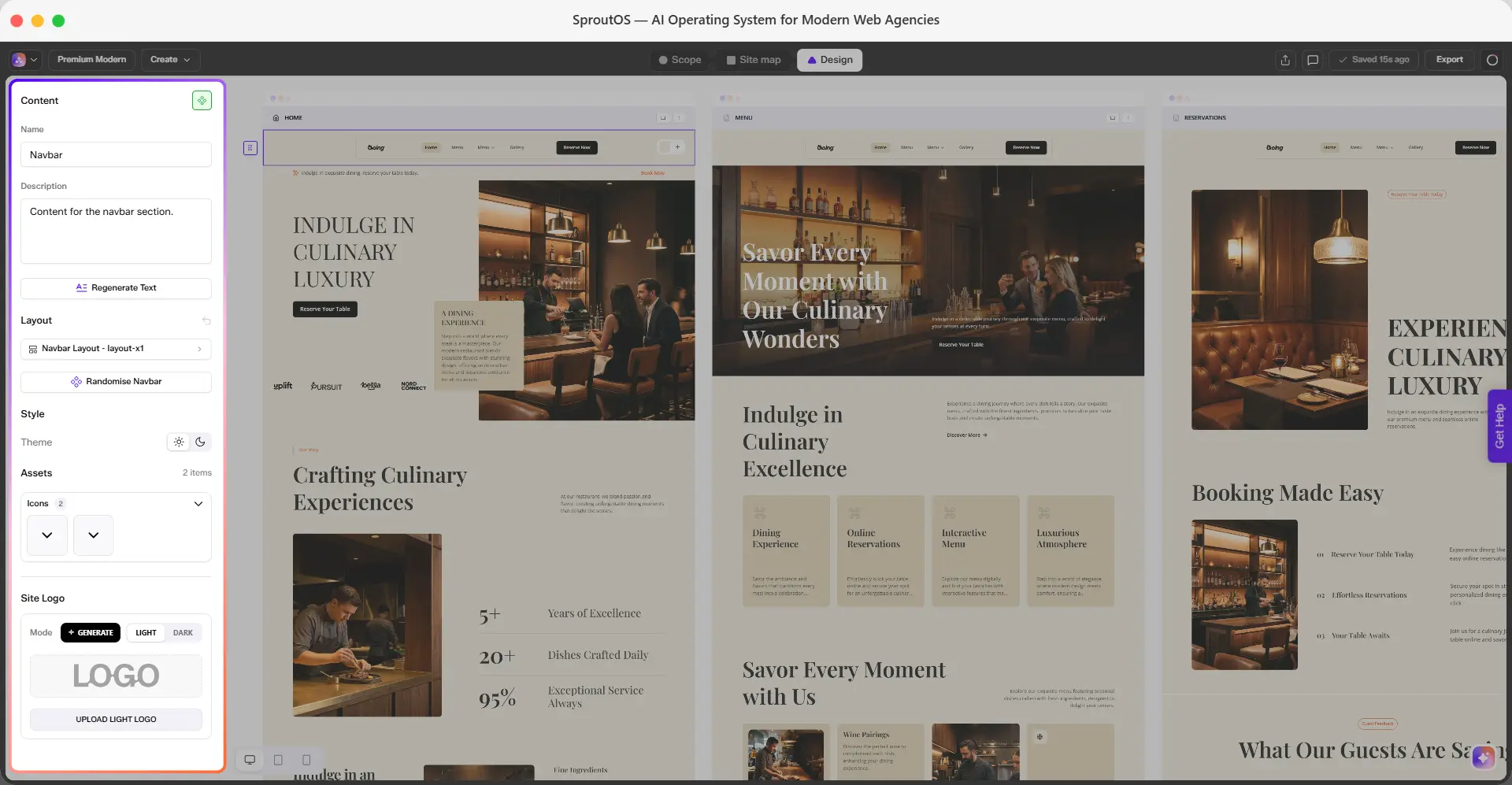
Click any section on the canvas to open its detail panel. The panel is organized into a few groups:
- Content: Edit the section's Name and Description, or click Regenerate Text to have AI rewrite the copy
- Layout: Shows the current layout variant, for example "Navbar Layout - layout-x1". Click Randomise to instantly switch that section to a different layout
- Style: Toggle the section's Theme between light and dark
- Assets: Manage the icons and other media used in the section. Click to expand and edit each one
Some sections show additional controls specific to their content. A Navbar or Footer section, for example, includes a Site Logo control where you can generate a new logo or upload separate light and dark versions.
Each section type has multiple layout variants. Switching variants changes the visual arrangement without changing the content.
- Open the layout picker for any section to browse available options
- AI Picks are highlighted - these are variants recommended based on your brief
- Bookmark variants you like for quick access later
- Search variants by name or number if you know what you are looking for
Editing Text
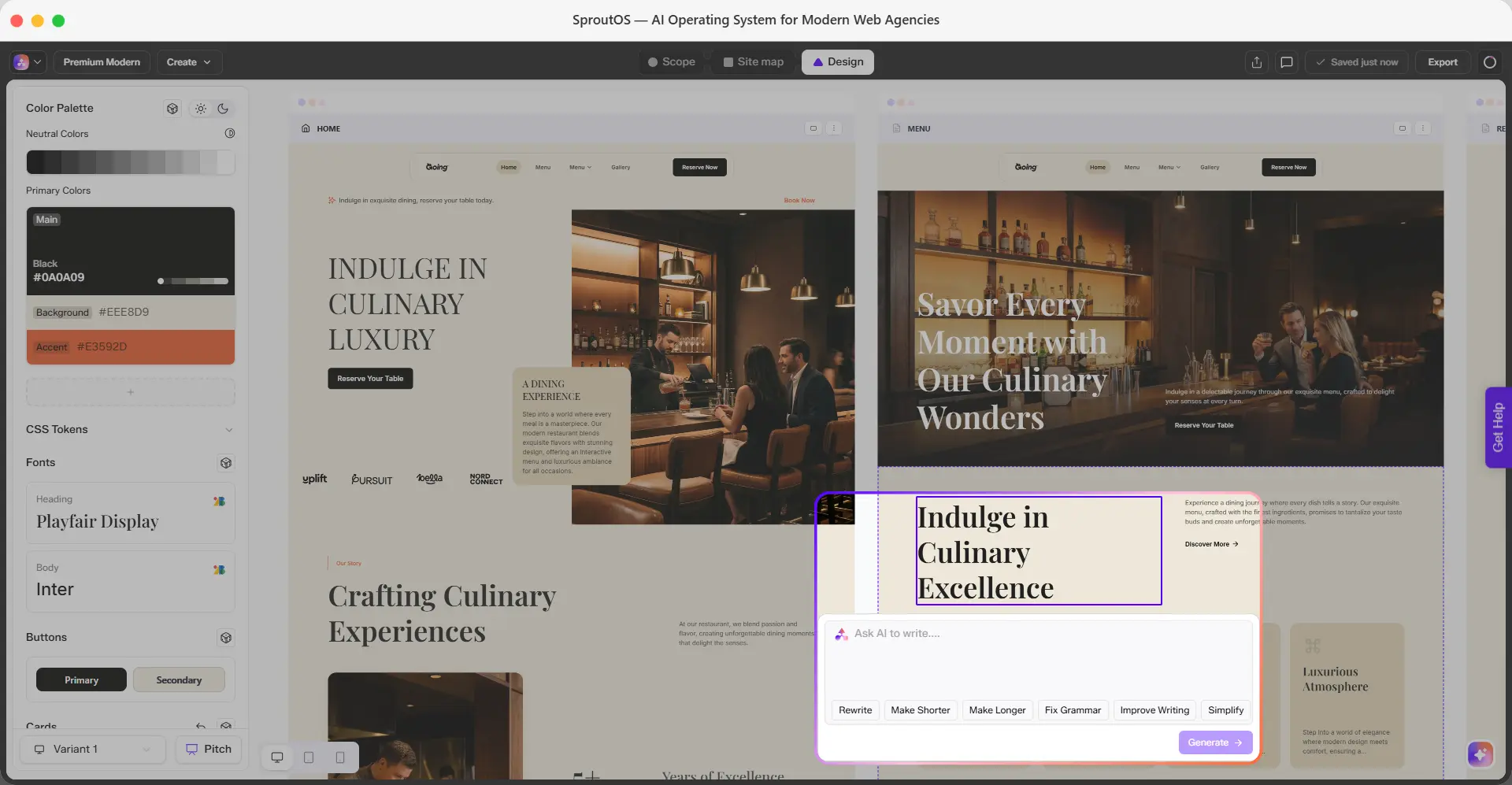
Click any text element on the canvas to edit it directly. Changes are saved automatically.
For AI-assisted editing, select any text element to open the quick actions panel:
| Action | What It Does |
|---|---|
| Rewrite | Rewrites the text from scratch using your brief as context |
| Make Shorter | Reduces length while keeping the meaning |
| Make Longer | Expands the text with more detail |
| Fix Grammar | Corrects spelling and grammar errors |
| Improve Writing | Improves clarity and flow |
| Simplify | Makes the language easier to read |
Images
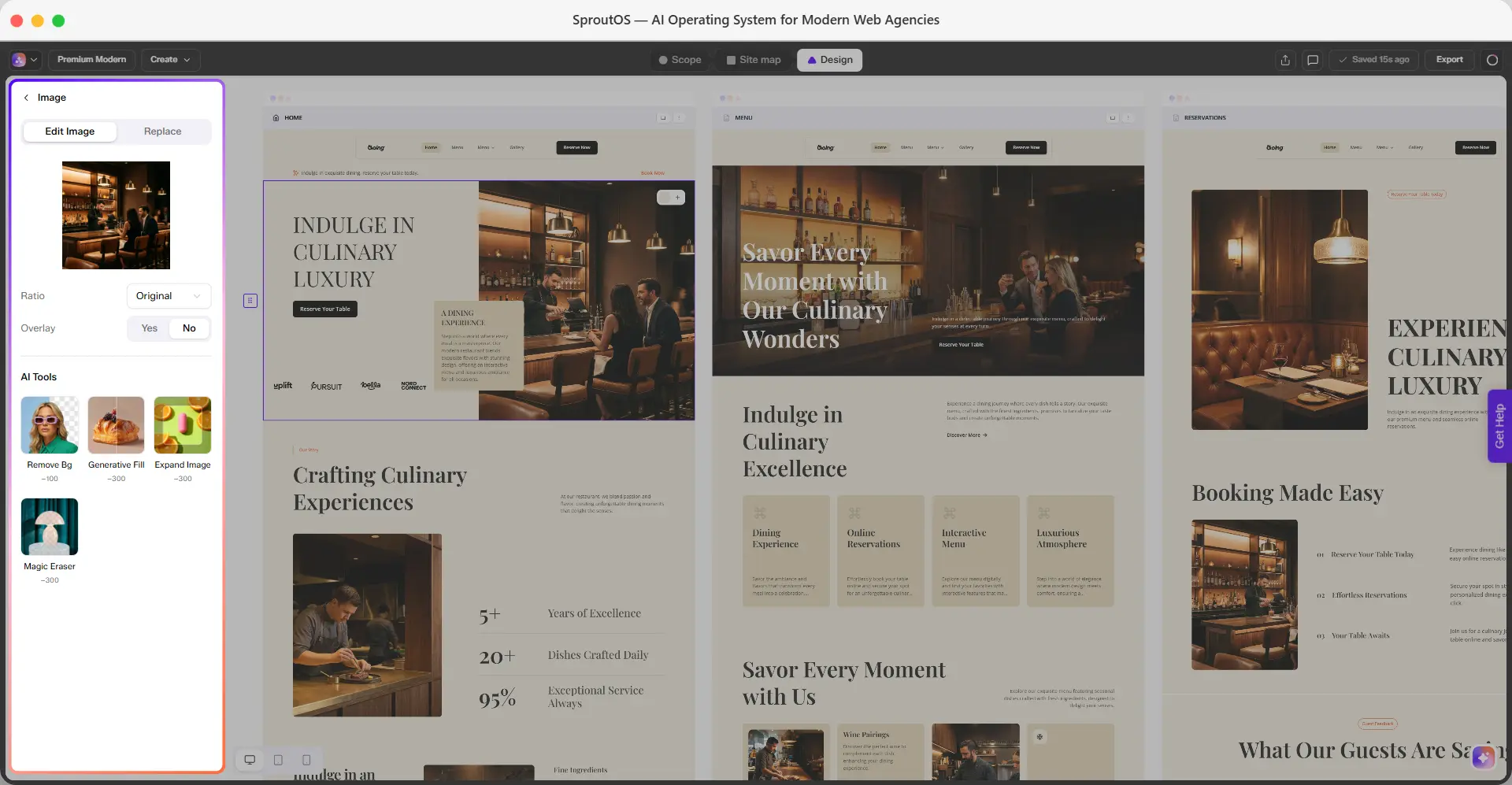
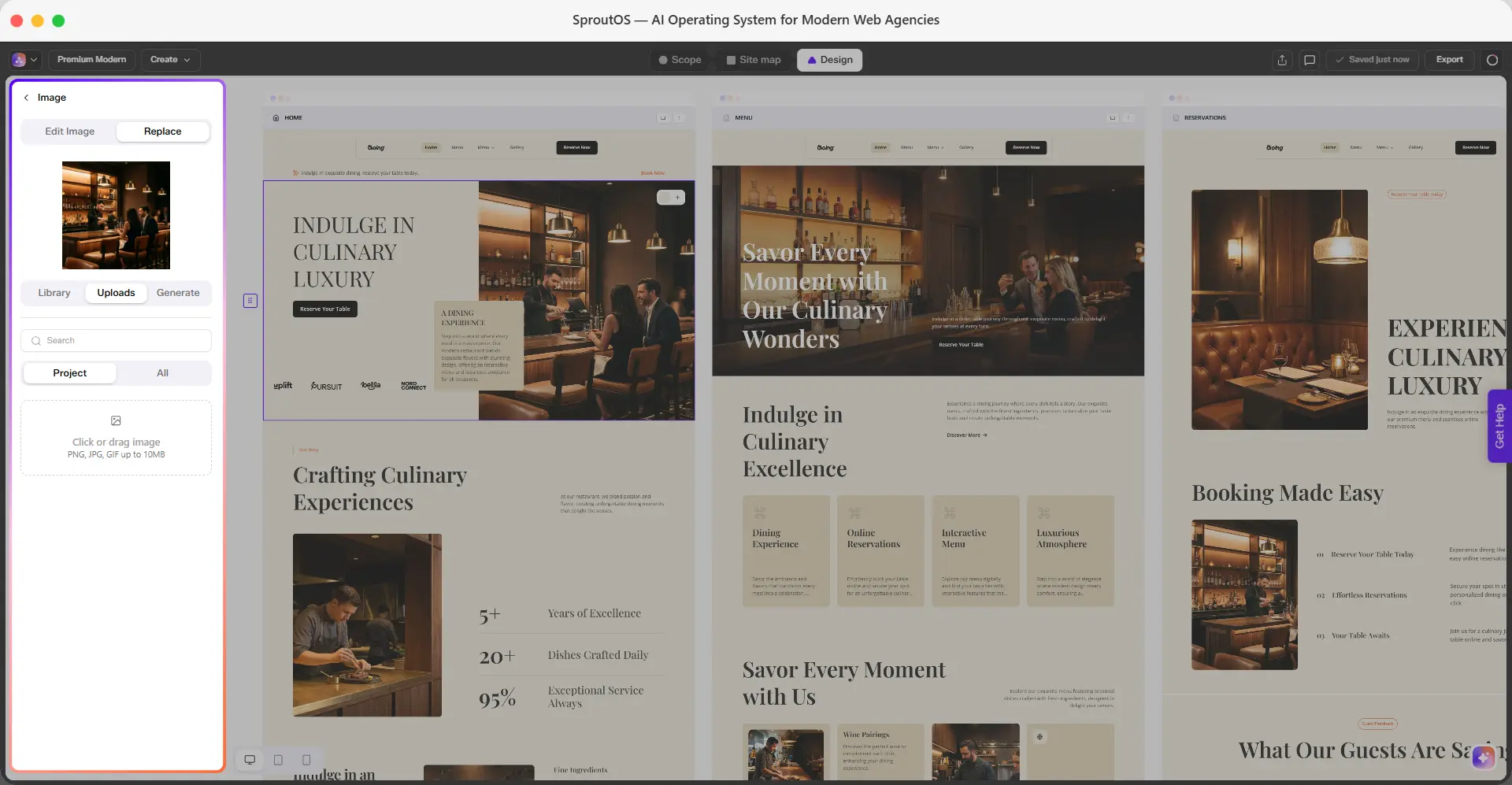
Click any image on the canvas to open the Image panel. It has two tabs: Edit Image and Replace.
The Edit Image tab lets you adjust how the current image is displayed without replacing it.
- Ratio - Choose the aspect ratio for the image frame: Original, 1:1, 4:3, 16:9, or 3:2
- Overlay - Toggle Yes or No to add a color overlay on top of the image, and control its opacity
Use AI Tools to edit the image itself with AI. Each tool costs credits to run:
| Tool | What It Does | Credit Cost |
|---|---|---|
| Remove Bg | Removes the background from the image | 100 |
| Generative Fill | Fills or extends parts of the image using AI | 300 |
| Expand Image | Extends the image beyond its original borders | 300 |
| Magic Eraser | Removes unwanted objects from the image | 300 |
The Replace tab lets you swap the current image with a new one from three sources:
- Library - Browse the built-in stock image library. Filter by Photos, Art, or 3D, and use the search bar to find a specific image.
- Uploads - Use your own images. Search or filter by Project or All to find a previously uploaded image, or click the upload area to drag and drop a new one (PNG, JPG, or GIF up to 10MB).
- Generate - Create a new image with AI directly inside the panel.
For logos, upload a light and a dark variant separately. SproutOS applies the correct version automatically based on the section background color.
Responsive Preview
Switch between Desktop, Tablet, and Mobile at any time to check how the design looks at different screen sizes.
| Viewport | Width |
|---|---|
| Desktop | Full canvas |
| Tablet | 768px |
| Mobile | 375px |
Design edits are made in Desktop view. Tablet and Mobile views are for previewing only.
Frequently Asked Questions
Next Step
Export to WordPress
Export your finished design to Elementor or Gutenberg.