

Security & Best Practices
How SproutOS keeps your site safe - Safe Mode, Ability Manager, protected files, Crash Guard, and recommended setup for AI-powered WordPress management.
SproutOS gives your AI real access to your WordPress site. That power comes with layered safety controls so you stay in charge of what the AI can and cannot do. This guide walks you through the controls that matter most and how to use them.
Safe Mode
One toggle makes every ability read-only instantly. Your AI can explore and audit - but cannot write, edit, or execute anything.
Ability Manager
Enable or disable any of the 175+ abilities individually. Turn off entire categories when you don't need them.
No Anonymous Access
Every connection requires a WordPress Application Password over HTTPS. Only Administrator-role users can connect.
Protected Files
Sensitive files and core WordPress directories are always blocked - regardless of which abilities are enabled.
Safety Controls
Crash Guard, Rate Limiter, Audit Log, and Meta Snapshots - all configurable from SproutOS > Settings.
Admin Bar Indicator
Your admin bar always shows Sprout MCP: ON or OFF. Always visible so you know the current state at a glance.
Here's how to configure each one.
How do I make my AI read-only?
Safe Mode is the fastest way to lock down AI access. One toggle makes every ability read-only - your AI can explore and report, but cannot write, edit, or execute anything.
Use it when you want your AI to audit your site, check for issues, or research without making any changes.
Open AI Abilities
Go to SproutOS > AI Abilities.
Enable Safe Mode
Toggle Safe Mode on. All ability checkboxes show "Locked in Safe Mode" - nothing can be modified while it's active.
Turn it off when ready
Toggle Safe Mode off to resume normal operation. Your previous ability settings are restored automatically.
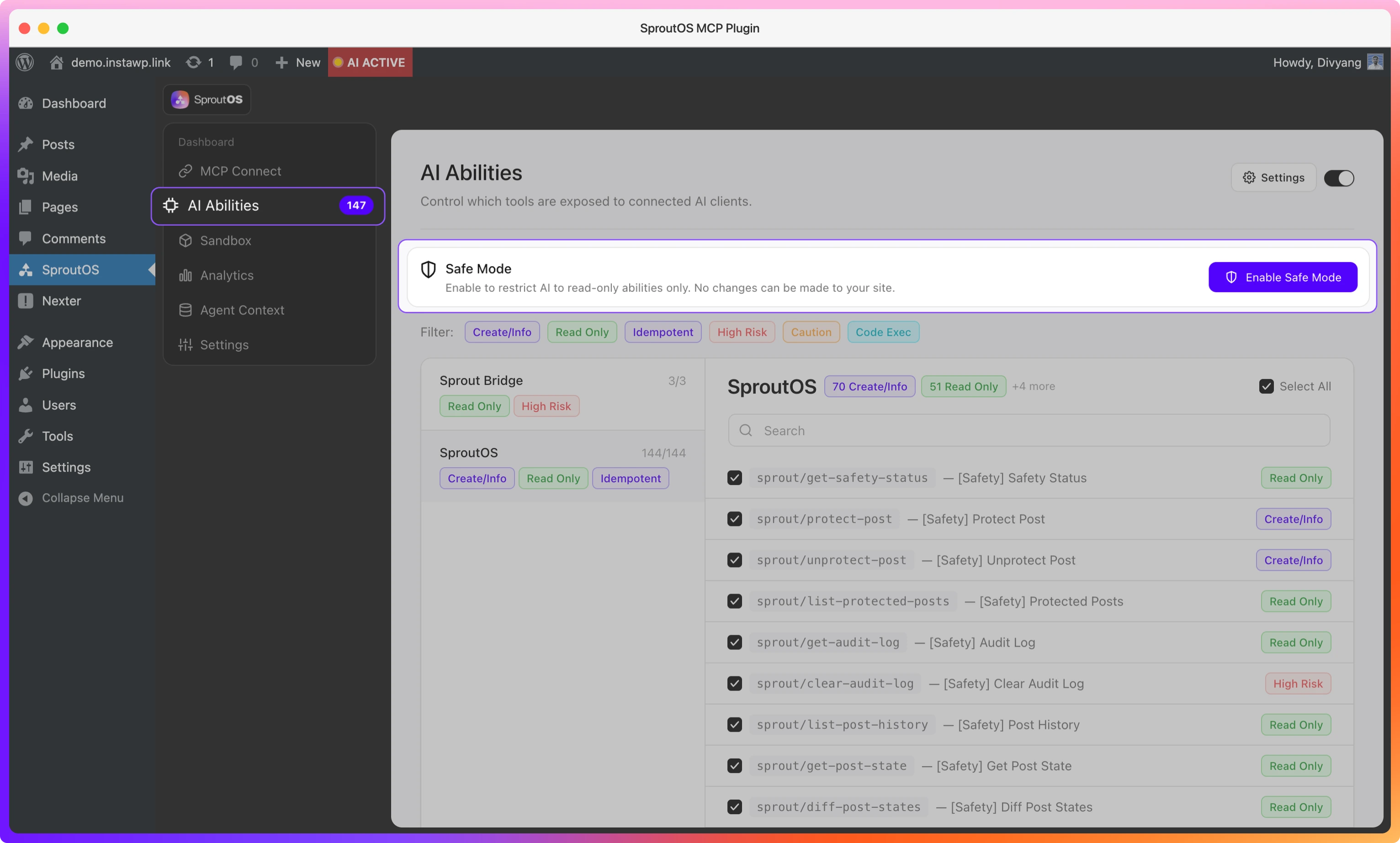
Safe Mode is ideal for exploring a live site. Your AI can read everything - files, theme, database - without touching anything.
How do I control which abilities are active?
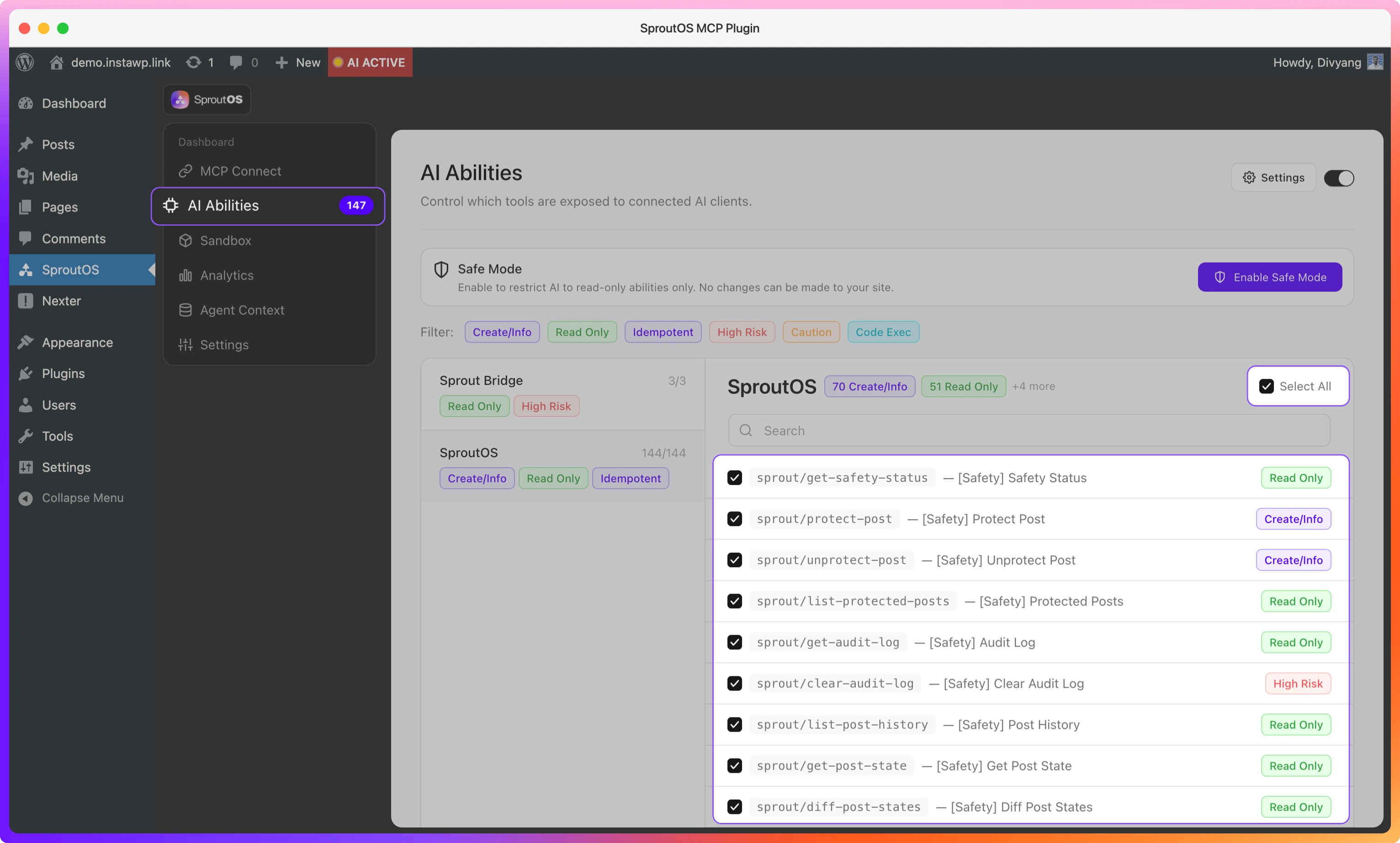
Every one of the 175+ abilities can be enabled or disabled individually. If you only need your AI to work with theme files, disable everything else. Less surface area means less risk.
Open AI Abilities
Go to SproutOS > AI Abilities.
Toggle abilities
Find the ability or category you want to restrict and turn it off. Changes take effect on the next session.
You can also disable entire categories - for example, turn off WooCommerce abilities when you're not doing store work, then re-enable them when you need them.
How do I know if SproutOS is active?
Your WordPress admin bar always shows whether AI abilities are active:
- Sprout MCP: ON - your AI client can connect and use abilities
- Sprout MCP: OFF - abilities are disabled, no AI access
Check this anytime you're unsure whether SproutOS is active.
How do I manage connection passwords?
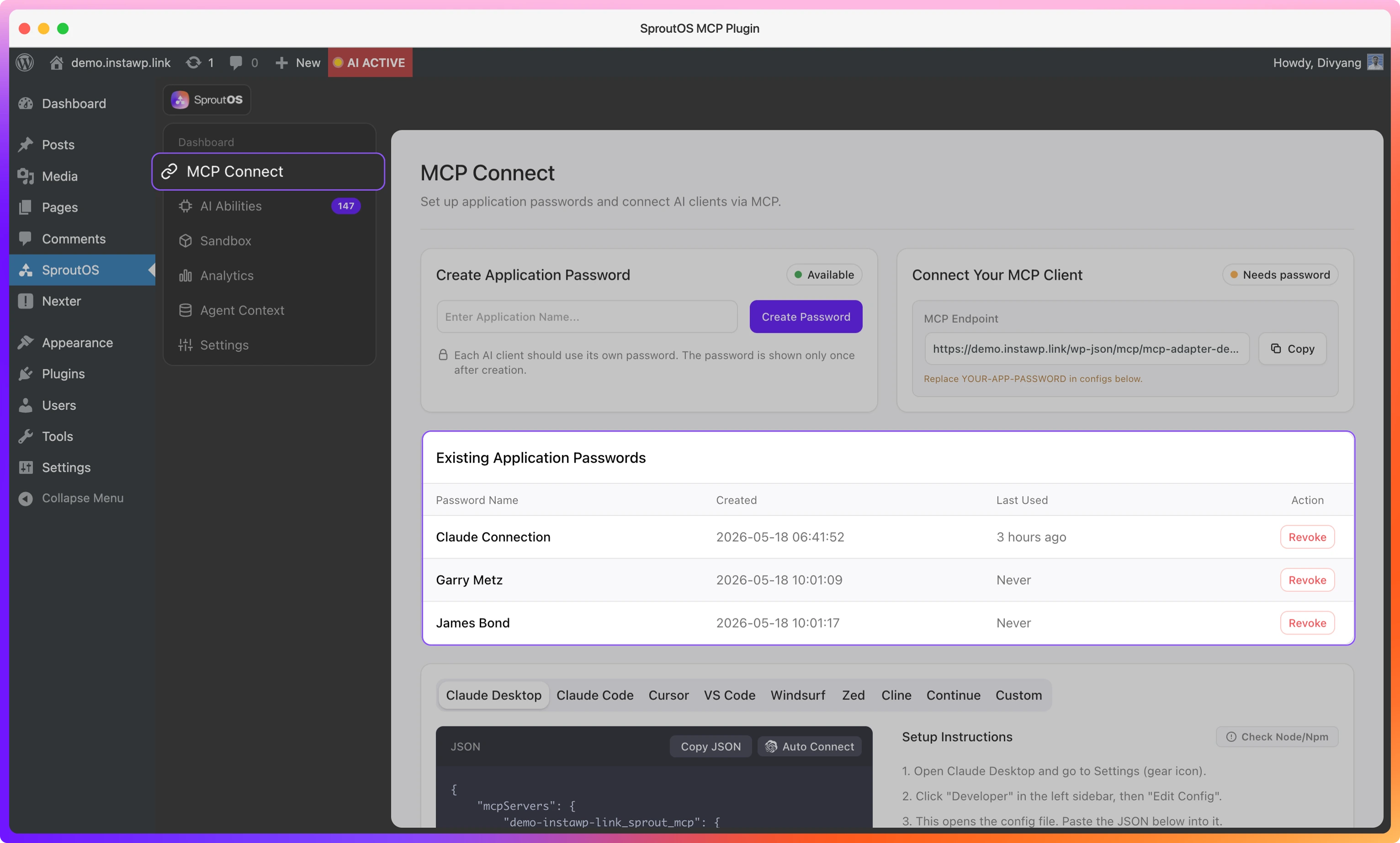
Every connection requires a WordPress Application Password over HTTPS. There's no anonymous access - your AI client must authenticate with a valid username and password before it can call any ability.
Generate and manage passwords from SproutOS > MCP Connect. Give each AI client its own password so you can revoke one without affecting others.
What files are always blocked?
Regardless of which abilities are enabled, these are always blocked:
Protected files (cannot be read, written, or deleted):
.env, wp-config.php, .htaccess, debug.log, .git/, .sql
Protected directories (cannot be deleted):
wp-admin/, wp-includes/, wp-content/plugins/, wp-content/themes/
All file operations are also constrained to your WordPress root - symlinks are rejected to prevent directory traversal.
What other safety controls are available?
SproutOS includes additional controls you can configure from SproutOS > Settings:
| Control | What It Does |
|---|---|
| Rate Limiter | Caps how many operations the AI can run per minute (rate_limit_ops_per_min) |
| Domain Lock | Detects if the site has been migrated and alerts before allowing further operation |
| Audit Log | Records every tool call with timestamp, user, ability name, risk level, and execution time |
| Meta Snapshots | Saves site state before destructive changes so you can roll back |
| Crash Guard | Auto-disables any sandbox file that causes a fatal error and activates Safe Mode |
| Approve Before Every Call | Configure your AI client to ask for approval before running anything |
For a full breakdown of every safety control, see the AI Abilities reference.
What is the recommended setup?
Start on staging
Install SproutOS on a development or staging site first. Enable Safe Mode so your AI can explore without writing anything. Learn how your prompts translate to tool calls.
Enable only what you need
Use the Ability Manager to enable just the categories your workflow requires. Disable PHP execution if you don't need it.
Go live with a backup
Once your workflow is tested, run it on your live site with a backup in place. Many agencies use SproutOS on live sites - the sandbox, Safe Mode, and Crash Guard are built for that.
Frequently Asked Questions
Not through raw SQL. The sprout/execute-php ability runs PHP inside the WordPress environment, so the AI can use $wpdb and WP_Query to query data through WordPress APIs. Direct SQL injection through the MCP interface is not possible.
PHP files are syntax-validated before saving. If the code has a syntax error, the write is rejected. If a valid file causes a fatal error after saving, Crash Guard disables it automatically and activates Safe Mode until you review it.
Yes. Every tool call is logged in SproutOS > Analytics with ability name, user, risk level, and execution time. You can export the full log as CSV or set up webhook notifications for real-time alerts.
Yes. Many agencies do. Start with Safe Mode on, use the Ability Manager to limit scope, keep backups, and monitor the Analytics tab. The sandbox and Crash Guard are specifically designed to make live site usage safe.
Every ability is tagged with a risk level: readonly (reads only), additive (creates new content), destructive (modifies or deletes), or unknown. You can filter the Analytics feed by risk level to focus on high-impact actions.